Adding Payments
Learn how to record new payment transactions in DooUMS for deposits, installments, and final payments.
When to Use This Feature
Use the Add Payment function when:
- Recording bank transfer confirmations for specific pilgrims
- Entering counter cash deposits for registered pilgrims
- Processing installment payments from pilgrims
- Logging final balance payments from pilgrims
- Documenting any financial transaction from a specific pilgrim
Payment Entry Interface
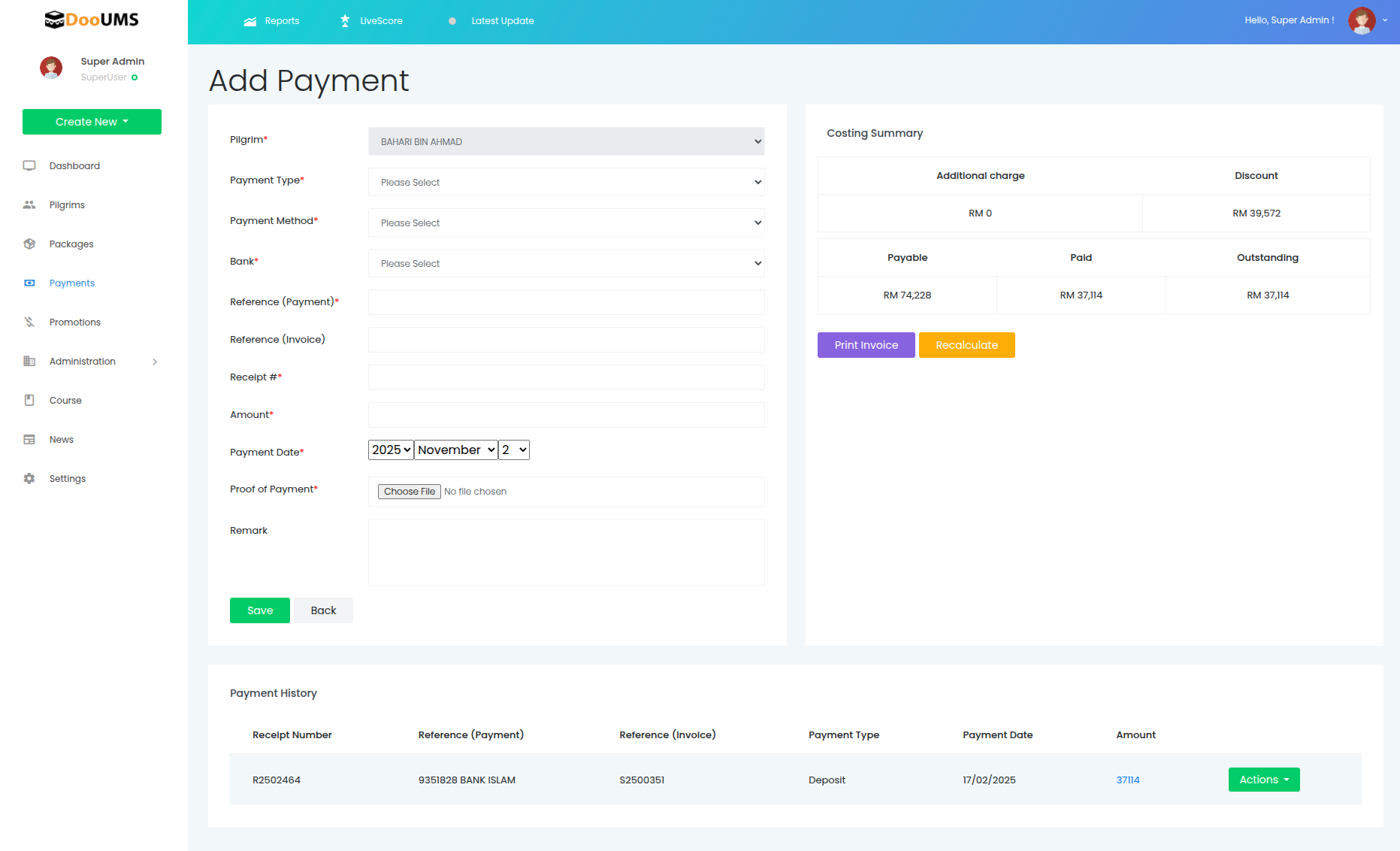
The payment entry form accessed through Pilgrims → Actions → Payment
Step-by-Step Process
1. Access Payment Entry
- Navigate to Pilgrims from the main menu
- Locate the specific pilgrim for whom you want to record a payment
- Click Actions → Payment for that pilgrim
- The Add Payment form will open
2. Complete Required Fields
Fill in all payment details carefully:
Pilgrim Selection
- Field: Pilgrim
- Action: Pre-selected (based on pilgrim chosen from Pilgrims screen)
- Note: Pilgrim field will be automatically populated and typically read-only
Payment Classification
- Field: Payment Type
- Options:
- Deposit
- Second Payment
- Third Payment
- Final Payment
- (Additional types as configured)
Transaction References
- Receipt #: Manual receipt number for your records
- Reference #: Bank transfer reference, transaction ID, or slip number
- Tip: This reference is crucial for bank reconciliation
Financial Details
- Amount: Enter the numeric payment value
- Format: Enter raw numbers (system will format automatically)
- Example: Enter
3150for RM 3,150.00
Timing
- Payment Date: Select when the payment was actually made
- Tool: Use the calendar date picker
- Default: Today's date (adjust if needed)
Additional Information
- Notes/Description (Optional): Add context such as:
- Bank name and branch
- Payer name (if different from pilgrim)
- Special circumstances
- Payment method details
3. Submit Payment
- Review all entered information for accuracy
- Click Save or Submit button
- Wait for confirmation message
- The payment will appear in the payments list with Not Verified status (red indicator)
Field Validation Tips
Required Field Checklist
- ✅ Pilgrim name selected
- ✅ Payment type chosen
- ✅ Receipt number entered
- ✅ Reference number documented
- ✅ Amount specified
- ✅ Payment date selected
Common Input Guidelines
Amount Entry
✅ Correct: 3150
✅ Correct: 3150.00
❌ Avoid: 3,150 (if system rejects commas)
❌ Avoid: RM 3150 (currency symbols)
Reference Numbers
✅ Good: "15022025 13:33 CASH DEPOSIT CIMB"
✅ Good: "TXN20250215001234"
✅ Good: "SLIP-20250215-001"
❌ Poor: "Bank transfer" (too generic)
Receipt Numbers
✅ Good: "R2502455"
✅ Good: "RCP-2025-001234"
❌ Poor: "001" (too short/unclear)
Example Walkthrough
Scenario: Recording Bank Transfer Deposit
Situation: Pilgrim Faizah Binti Kahar made a RM 3,150 deposit via CIMB bank transfer.
Steps:
- Navigate to Pilgrims module
- Find and select Faizah Binti Kahar
- Click Actions → Payment
- Enter form data:
- Pilgrim:
Faizah Binti Kahar(pre-selected) - Payment Type:
Deposit - Receipt #:
R2502455 - Reference #:
15022025 13:33 CASH DEPOSIT CIMB - Amount:
3150 - Payment Date:
2025-02-15 - Notes:
CIMB bank transfer - confirmed via mobile banking
- Pilgrim:
- Click Save
- Result: Payment appears in pilgrim's payment history with red verification dot
Scenario: Counter Cash Payment
Situation: Pilgrim pays RM 1,500 second installment at office counter.
Steps:
- Navigate to Pilgrims module
- Find and select Ahmad Bin Ali
- Click Actions → Payment
- Enter form data:
- Pilgrim:
Ahmad Bin Ali(pre-selected) - Payment Type:
Second Payment - Receipt #:
R2502456 - Reference #:
COUNTER-20250215-14:30 - Amount:
1500 - Payment Date:
2025-02-15 - Notes:
Cash payment at main office - counted by finance officer
- Pilgrim:
- Click Save
- Result: Payment recorded for verification
Post-Entry Actions
Immediate Next Steps
- Verify Information: Double-check all details are correct
- Note Reference: Record the reference number for bank reconciliation
- Plan Verification: Schedule verification against bank evidence
- Generate Receipt: Prepare receipt for pilgrim (after verification)
Integration with Other Modules
- Pilgrim Records: Payment automatically links to pilgrim account
- Package Tracking: Payment applies to package balance
- Reporting: Payment appears in financial reports
- Audit Trail: Entry logged for compliance
Common Scenarios
Multiple Payments Same Day
- Use sequential receipt numbers
- Include time in reference numbers
- Add distinguishing notes
- Verify each payment separately
Split Payments
- Record each payment separately
- Use consistent reference format
- Note relationship in comments
- Track total package progress
Foreign Currency
- Convert to base currency before entry
- Note original currency and rate in comments
- Attach exchange documentation
- Follow organization's currency policy
Troubleshooting
Pilgrim Not Found
Problem: Cannot locate pilgrim to add payment Solutions:
- Verify pilgrim is registered in system
- Check spelling of pilgrim name in Pilgrims module
- Search by registration number if available
- Contact admin if pilgrim missing from system
Duplicate Receipt Numbers
Problem: Receipt number already exists Solutions:
- Use next sequential number
- Check for typos in number entry
- Implement number sequence system
- Review existing records for conflicts
Amount Formatting Issues
Problem: System rejects amount entry Solutions:
- Enter raw numeric value only
- Remove currency symbols and commas
- Use decimal point (not comma) for cents
- Contact support if persistent issues
Next Steps
After adding a payment:
- Proceed to Payment Verification to confirm the transaction
- Learn about Receipt Management for document generation
- Review Search and Filtering to locate payments efficiently